
If you can access your cPanel account, follow these steps to reset your password:
1. Log into your cPanel account. (eg: www.example.com/cPanel )
2. In the "Preferences" section, click on "Password & Security" Icon.
3. Enter your old password.
4. Enter your new password or use a password generator.
5. Click on change password.
You will see a success message then it means your password is changed, Log out and access your account using your new password.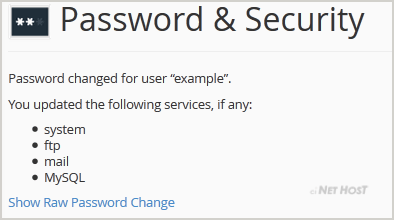
Note: If you forgot your cPanel password and are unable to access your account, please open a ticket with us.
Categories
4
Backup/Restore
24 cPanel - Control Panel
56 cPanel - VIDEO Tutorials
11 Databases
6 DNS - Nameserver
32 DNS Nameservers - VIDEO Tutorials
10 Domain Management
14 Drupal - VIDEO Tutorials
11 Email
56 Email - VIDEO Tutorials
31 Email - Webmail - VIDEO Tutorials
10 FileZilla - VIDEO Tutorials
9 FTP
24 FTP - VIDEO Tutorials
8 Mail Filters & SPAM
11 Mobile
3 Others
12 phpMyAdmin - VIDEO Tutorials
12 PuTTY - VIDEO Tutorials
10 Security
79 Softaculous
5 SSL
17 Wordpress
25 WordPress - VIDEO Tutorials
Categories
- 0 Users Found This Useful
Related Articles
How to upload files via the cPanel FileManager?
If you don't want to use a 3rd party FTP Software, you can use the cPanel's inbuilt...
How to change PHP version on your domain using cPanel?
Some software requires older version of PHP like 5.6 while other asks for PHP7. If it happens you...
How to Reset the PHP Version to the Default Version, Using cPanel?
If you wish to reset the PHP version to the default version, follow these instructions:1. Log...
How to Set the PHP Version per Domain, Using cPanel?
Do you have multiple domains and you wish to set the PHP version per domain? For example, you...
How to Set the PHP Version per Folder?
Do you have a single domain or wish to use different PHP version per folder? Do you have an...
Powered by WHMCompleteSolution


